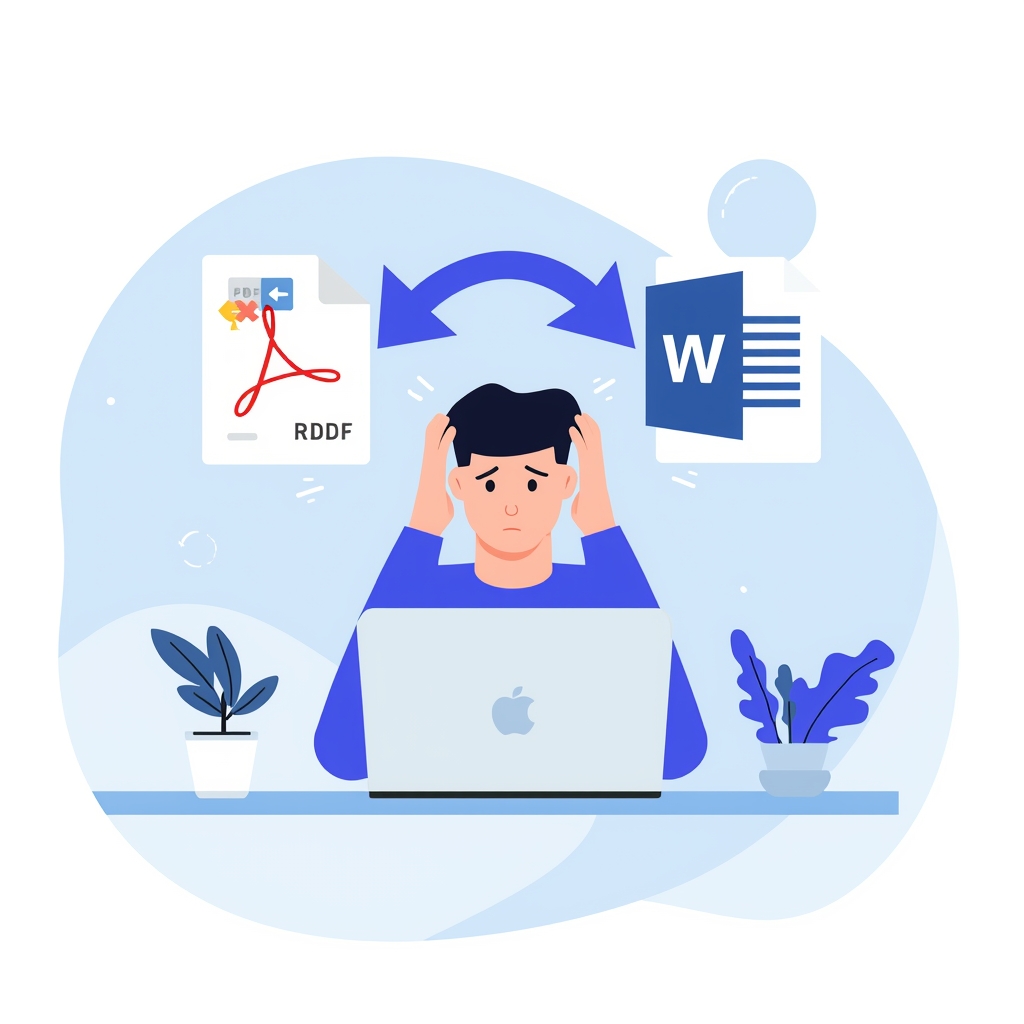
If you're a freelancer, you've probably faced this situation more than once.
A client sends you a PDF and asks for quick edits — maybe it's a proposal,
a report, a contract, or a set of slides. You open the file, everything
looks completely fine, but when you try to edit it… nothing works.
You can't select the text. You can't copy anything. Pasting into Word
gives you a blank page or a broken image. And suddenly, what was supposed
to be a 5-minute task turns into a 45-minute frustration.
The good news? You don't need expensive software or a paid subscription
to fix this. There's a simple, free solution that takes under 30 seconds —
and once you know it, you'll never waste time on this problem again.
Why Clients Send Non-Editable PDFs
Most clients don't even realize they're sending a non-editable file.
It's not intentional — it happens because of how the PDF was created
in the first place. Many documents get exported or printed in a way
that converts all the text into a flat image layer.
This commonly happens when:
-
🖨️
The document was physically scanned and saved as PDF
-
📸
A photo or screenshot was converted into a PDF file
-
🤖
The file was exported from an AI tool like ChatGPT
-
📋
The client printed a webpage or form directly to PDF
-
🔒
The original file had security settings that locked editing
In every one of these cases, the result is the same — the PDF
behaves like a picture rather than a document:
- You cannot click into or select any text
- Copy-paste produces nothing or garbled characters
- Formatting completely breaks in basic conversion tools
- You feel forced to either retype everything or pay for Adobe
- Deadlines get missed because of one locked file
Editable PDF vs Client PDF — What's the Difference?
|
✅ Editable PDF
|
❌ Client PDF (Common Case)
|
| Text is real and selectable |
Text is rendered as an image |
| Copy-paste works perfectly |
Copy-paste does nothing |
| Converts to Word cleanly |
Needs OCR to convert properly |
| Easy to update and edit |
Editing fails immediately |
| Quick turnaround for clients |
Time wasted troubleshooting |
| Works in any editor |
Locked — cannot be changed directly |
The Real Solution Freelancers Use — OCR
The easiest and most reliable way to fix a non-editable PDF is by
converting it into a Word document using
OCR (Optical Character Recognition).
OCR is a technology that reads text from images — the same way a
human reads a photograph of a page. When you apply OCR to a
locked or scanned PDF, it analyzes every page, recognizes each
character, and converts everything into real, editable text inside
a Word document.
This is exactly why most people fail when they try basic converters —
those tools simply embed the image into Word without reading it.
The result looks the same but is still completely uneditable.
With OCR, the result is a clean DOCX file where every word can
be changed, deleted, or reformatted instantly.
📌 Important
Most free tools fail because they don't include OCR. If a tool
doesn't specifically mention OCR support, it will not work on
image-based PDFs — you'll just get an unusable image inside Word.
How to Edit a Client PDF in 30 Seconds — Step by Step
You can use the
PDFLinx PDF to Word Converter
to convert any client PDF into a fully editable Word file —
completely free, no signup required, no watermark added.
1
Open PDFLinx PDF to Word
Go to pdflinx.com/pdf-to-word in your browser. Works on desktop, tablet, and mobile — no software installation needed at all.
2
Upload the Client PDF
Drag and drop the file directly onto the page, or click the upload button to browse your files. You can upload multiple PDFs at once if you have a batch of client files to process.
3
Enable OCR
This is the most critical step. Find the OCR checkbox or toggle and make sure it is turned on before converting. Without OCR, the tool will embed the image without reading it — and the result will still be non-editable.
4
Click Convert
Hit the Convert button and wait a few seconds. Processing time depends on file size and page count — most standard documents are done in under 30 seconds.
5
Download and Start Editing
Your DOCX file downloads automatically. Open it in Microsoft Word, Google Docs, or LibreOffice — and make all the edits your client needs without any restrictions.
💡 Pro Tip
If you regularly work with multiple clients, use the batch upload
feature to convert several PDFs at once. This saves you significant
time when you have a pile of files that all need editing. Also —
enable OCR only for image-based or scanned PDFs. For normal
text-based PDFs, leaving OCR off gives cleaner formatting results.
Common Mistakes Freelancers Make With Non-Editable PDFs
🚫
Trying to edit the PDF directly
Image-based PDFs cannot be edited in any PDF viewer or editor. No matter how many times you try clicking into the text, it will not work — the content is just pixels, not characters.
🚫
Using basic converters without OCR
Most free online tools do not include OCR. They convert the PDF but simply embed the image inside the Word file — which gives you exactly the same non-editable result.
🚫
Paying for Adobe Acrobat
Many freelancers assume they need an expensive subscription. You don't. Free tools with proper OCR — like PDFLinx — handle this job just as well, completely free.
🚫
Manually retyping the entire document
This is the most painful mistake. Retyping a 5-page client document wastes hours of billable time. With OCR conversion, the same job takes under a minute.
🚫
Asking the client to resend in another format
This wastes everyone's time and makes you look less professional. Fix it yourself in 30 seconds instead of going back and forth over email.
Who Should Use This Method?
💻
Freelancers
Working on client proposals, contracts, reports, and documents that arrive locked or image-based.
🤝
Virtual Assistants
Handling admin files, invoices, HR forms, and client documents that need fast editing.
✍️
Writers & Editors
Editing drafts, manuscripts, or content pieces received as non-editable PDF files.
🎨
Designers
Updating copy inside PDF proposals or pitch decks before presenting to clients.
📊
Consultants
Modifying reports, data summaries, or strategy documents sent in locked PDF format.
🧑💼
Anyone
Who regularly receives PDFs from clients and needs to make quick edits without paying for software.
Quick Questions
❓ Is PDFLinx really free for freelancers?
Yes — completely free. No signup required, no watermark added, and no limits on how many times you use it.
❓ Will the formatting stay intact after conversion?
For most standard documents, yes. Tables, paragraphs, and headings convert cleanly. Very complex layouts may need minor touch-ups.
❓ Does it work on mobile while working remotely?
Absolutely. Open pdflinx.com/pdf-to-word on any mobile browser and it works exactly the same as on desktop.
❓ Is my client's file kept confidential?
Yes. Files are processed securely and automatically deleted after conversion. Nothing is stored or shared.
❓ Can I convert multiple client files at once?
Yes. PDFLinx supports batch upload so you can process several PDFs in one go — great for busy freelancers.
Conclusion
Getting a non-editable PDF from a client is one of the most common
frustrations in freelance work — but the fix is genuinely simple.
Once you understand that the problem is an image-based PDF, the
solution becomes obvious: use an OCR-powered converter to extract
real editable text.
Stop wasting billable hours retyping documents, going back and forth
with clients, or paying for Adobe subscriptions you don't need.
PDFLinx handles this job for free — in seconds — on any device.
Next time a client sends you a locked PDF, you'll know exactly
what to do — and you'll have it fixed before they even send the
follow-up email.
Edit Your Client PDF — Free
No signup · No watermark · OCR included · Works on mobile
Convert Now →