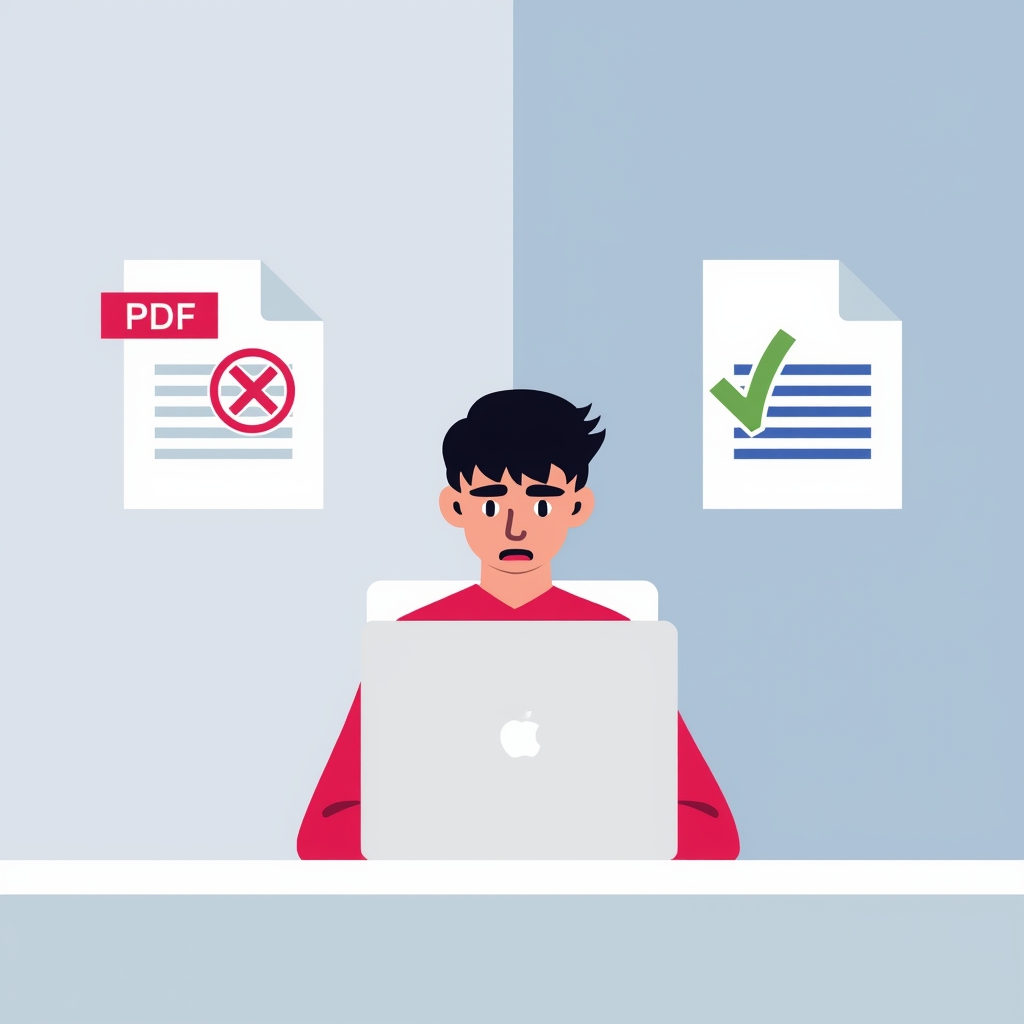
Yesterday, I opened a PDF file that I urgently needed to edit. Everything looked fine — the text was clearly visible — but I couldn't click, select, or change anything. I tried copying the text into Word, but nothing worked.
I spent almost 20 minutes trying different things — opening it in different apps, copy-pasting, even screenshotting sections — before I finally understood what the real problem was. And once I understood it, fixing it took less than 30 seconds.
This is one of the most common and frustrating problems people face with PDFs, especially when the file looks completely normal but behaves like an image. In this guide, I'll explain exactly why this happens — and show you the fastest free fix that actually works.
Why Is Your PDF Not Editable?
Not all PDFs are the same. Some PDFs contain real, selectable text — created directly from Word, Google Docs, or similar tools. But others are actually image-based PDFs. These files look exactly like normal documents, but inside they are just pictures of text — no actual characters, no selectable words.
Think of it like the difference between a Word document and a photograph of that same document. The photograph looks identical, but you cannot click into it and change a single letter.
This usually happens when:
- 📄 The file was scanned from a physical document
- 🤖 It was exported from an AI tool like ChatGPT
- 🖨️ It was printed to PDF from an image-heavy source
- 📸 The original file was a photo or screenshot saved as PDF
In all of these cases, the result is the same:
- You cannot select or highlight any text
- Copy-paste does not work at all
- Editing the file in Word or any other tool fails
- Basic PDF converters give you an image inside Word — not real text
- Retyping everything from scratch wastes hours of your time
Editable PDF vs Non-Editable PDF — Key Differences
What Is OCR and Why Do You Need It?
OCR stands for Optical Character Recognition. It is a technology that reads text from images — the same way a human reads a photograph of a page. When you apply OCR to a non-editable PDF, it scans every single page, recognizes each character, and converts it into real, editable text.
Without OCR, a PDF converter would simply embed the image into Word — which gives you the same problem: a picture inside a document, still not editable. With OCR, the result is a fully editable DOCX file where every word can be changed, deleted, or reformatted.
This is exactly why most people fail when trying to fix this problem — they use a basic converter that does not have OCR. The tool runs, produces a Word file, but the text is still just an image inside it.
How to Fix a Non-Editable PDF in 30 Seconds — Step by Step
PDFLinx offers a completely free PDF to Word converter with built-in OCR. No subscription, no signup, no watermark — just upload your file and convert it instantly. Here is exactly what to do:
Common Mistakes People Make When Fixing This
Who Faces This Problem Most Often?
Quick Questions
Conclusion
If your PDF opens but cannot be edited, you are almost certainly dealing with an image-based file. The good news is that the fix is simple, free, and takes less than 30 seconds.
Stop wasting time trying to copy-paste, retype, or use basic converters that don't have OCR. Use a proper OCR-based tool, convert your PDF to Word, and get your editing done instantly.
PDFLinx does exactly this — for free, with no signup, no watermark, and no limits on how many times you use it.
Fix Your Non-Editable PDF — Free
No signup · No watermark · OCR included · Instant download
Convert Now →